Cube
Prerequisites Make sure you have the following:
- A reachable Cube REST API endpoint, such as
https://your-cube-host/cubejs-api/v1 - At least one published cube model that Reveal users can query
- A bearer token strategy, such as JWT, if your Cube deployment requires authentication
Cube is a headless business intelligence platform that exposes your data models through a REST API. Connect to Cube as a data source in Slingshot to build dashboards on top of the measures and dimensions defined in your Cube data model.
Connecting to Cube
To configure a Cube data source, you will need to enter the following information:
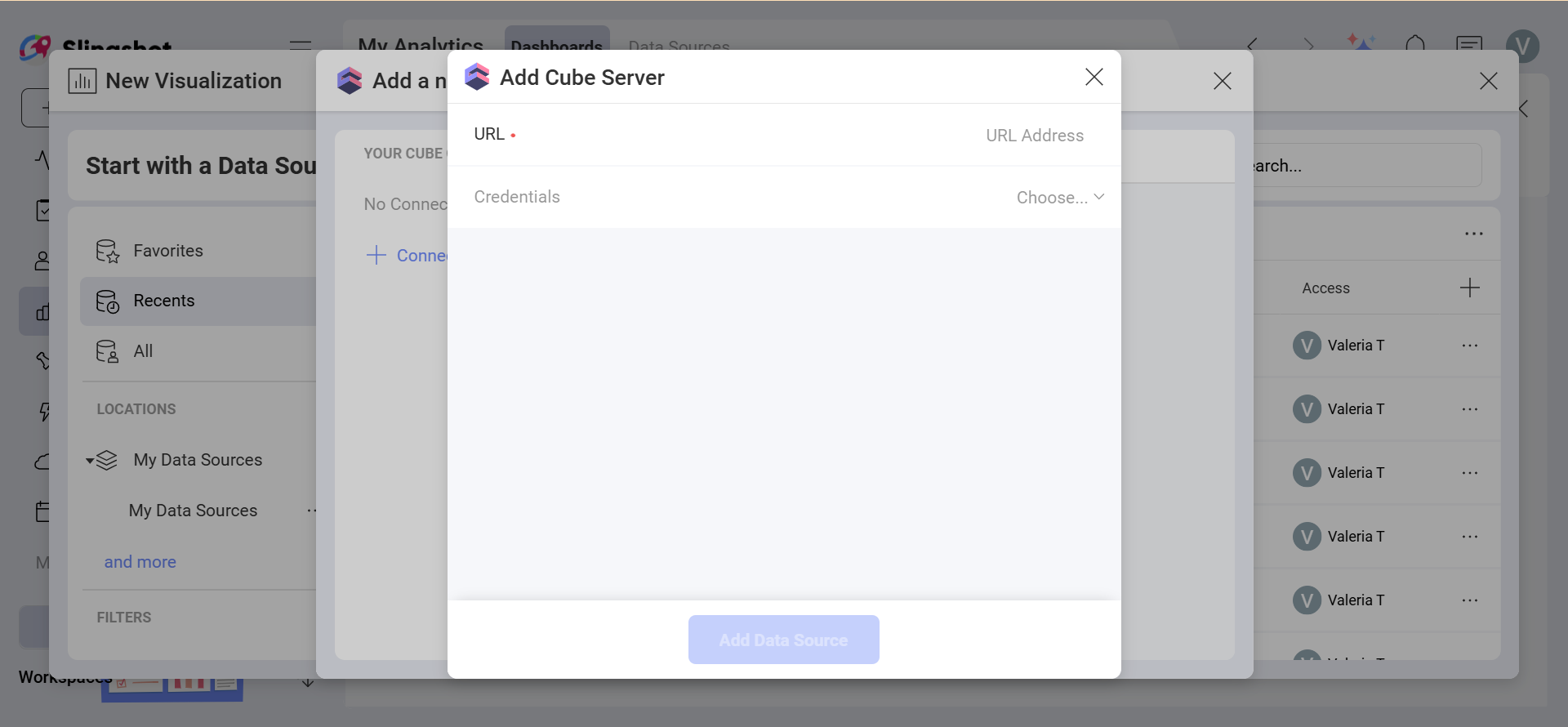
URL: the base URL of your Cube deployment's REST API endpoint. For Cube Cloud, this is the REST API URL shown in your deployment's connection settings.
Credentials: after selecting Credentials, you will be able to enter the credentials for your Cube deployment or select existing ones if applicable.
Token: the authentication token used to access your Cube REST API. You can generate this from your Cube deployment.
Alias: the name for your data source account.
Once ready, select Add Data Source.
For more information about the REST API and authentication tokens, you can check the Cube REST API documentation.
Setting Up Your Data
After connecting to Cube, you will see the data exposed by your Cube deployment. The cubes and views defined in your data model appear as tables that you can query.
Working with Cubes and Views
With Analytics, you can retrieve data from a whole cube or select a particular view that exposes a curated subset of measures and dimensions from one or more cubes.
In the data source dialog, views appear alongside cubes. Select the cube or view you need to load only the data relevant to your analysis.
Working in the Visualization Editor
Once your data source has been added, you will be taken to the Visualization Editor. Here you can build your dashboard. Note that based on the visualization that you have chosen, you will see different types of fields.
When you are ready with your visualization, you can click/tap on the checkmark in the top right corner to save it as a dashboard in My Analytics ⇒ My Dashboards or in a specific workspace.